Saturday, May 5, 2007

Running OLPC on VirtualBox

I have this project that I have been meaning to port to the OLPC but had been postponing to wait for a more mature development environment.
Well, with the release date set for october, I decided that waiting is no longer an option. On my main machine I have the sugar-jhbuild environment, which is OLPC's gui built from scratch within a Linux environment and the Qemu image which boots normally, but that is a bit too slow for my taste.

So decide to try and run OLPC from VirtualBox, a GPL'd new virtualization tool that I have been quite happilly using lately (much better than VmWare).

So this post is intended as a "how to run OLPC from VirtualBox", type of article. So let's get started:

  1. My start point is an Ubuntu Feisty, with VirtualBox already installed. Installing VirtualBox on an Ubuntu box is a matter of pointing and clicking if you have Automatix installed.
  2. First you need to obtain the latest development image from here.
  3. Start VirtualBox by clicking its icon in the menu.
  4. Click on the new button to create a new virtual machine. A wizard dialog will come up. click next, pick a name, "OLPC" for example. In the combo box below pick "Linux 2.6" as OS type. Click next.
  5. Pick the recommended memory size (128MB). Click next.
  6. Since the image you downloaded is a livecd image you don't have to create an HD, so just click next.
  7. Click finish. you are almost done. You are taken back to the main window, and the panel on the left shows the VM you just created.
  8. Click on the icon corresponding to the VM you created. O the right-side panel a descritpion of it will show up.
  9. Click on "CD/DVD-ROM". Check the box that says "mount CD/DVD drive"
  10. Select the "ISO Image File" radio button.
  11. Select the ISO image file you have downloaded previously.
  12. Click ok and you're done! Just go ahead and star your virtual machine!
Now Virtual box will show a console where the typical Linux boot up messages scroll by. After the boot is complete you will be presented with the XO's login screen. Type your name click on the ">" icon and you will be taken to the sugar desktop.Hint: once you click on the desktop mouse and keyboard are captured by the VM. To release them, press the right CTRL key.
Enjoy!

Wednesday, April 4, 2007

Graph visualization tool

My main line of research relates to the dynamical simulations in networks. Therefore, I deal daily with very large data sets corresponding to the output of my network simulation models. Visualizing these data sets is always a challenge.

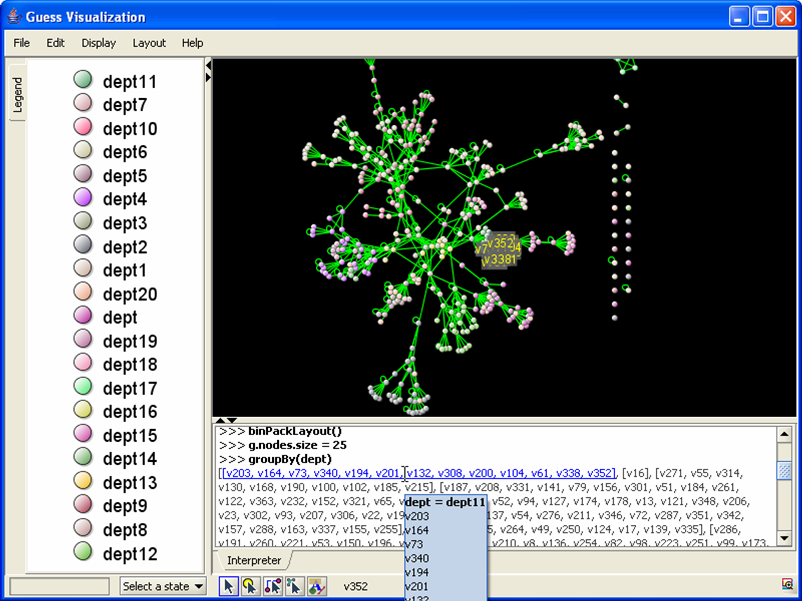
I am always on the lookout for interesting software to help me accomplish that. The latest one I came across is GUESS, which only features in this blog because it was partially developed in Jython.

One feature which attracted my attention is the possibility of adapting some of their example applets written in Jython to work with my data sets. Let's see how this goes. For those of you who are curious, here is a screenshot:

Monday, March 19, 2007

Sage - Web environment for Mathematics

Yesterday I decided to check the status of the SAGE project. I had first heard about it an uncertain number of months ago, but didn't take the time to try it and see what it is all about.

It is a very interesting project in many respects. SAGE stands for:

Software for Algebra and Geometry Experimentation

But it's potentially much more than that. It is a web-based, notebook-style, mathematics environment which brings together, under a unified interface, a host of very powerful GPL'd Scientific apps, plus the python language.

Python glues the whole framework together, but is also available as a programming language. There is even version control for notebooks provided by Mercurial.

The full list of components is listed below:
  1. bzip2: high-quality data compressor
  2. ec: elliptic curve invariants and enumeration
  3. GAP: Groups theory and Discrete Math
  4. genus2reduction: curve data computation
  5. GD: Dynamic graphics generation tool
  6. GMP: Arbitrary Precision Arithmetic Library
  7. GSL: Gnu Scientific Library
  8. IPython: interactive shell
  9. PNG: bitmap image support
  10. Lcalc: L-functions calculator
  11. Matplotlib: 2d plotting
  12. Maxima: computer algebra system
  13. Mercurial revision control system
  14. MoinMoin Wiki
  15. MPFI: Arbitrary precision interval arithmetic
  16. MPFR: Arbitrary precision real arithmetic
  17. MWRANK: elliptic curve calculator
  18. NetworkX: Graph theory
  19. NTL: Number theory C++ library
  20. Numpy: Numerical linear algebra
  21. OpenSSL: Secure networking
  22. PALP: A Package for Analyzing Lattice Polytopes
  23. PARI: Number theory calculator
  24. pexpect: pseudo-tty control
  25. pycrypto: Python implementation of cryptosystems
  26. PyOpenSSL: Python interface to OpenSSL
  27. Python: interpreted language
  28. Readline
  29. SageX -- compiled language; based on pyrex
  30. Singular: fast commutative and noncommutative algebra
  31. SQLite: Relation database
  32. Sympow: L-function calculator
  33. Tachyon: lightweight 3d ray tracer
  34. Twisted: Python networking library
  35. ZODB: Object-oriented database
SAGE is distributed as a fat binary for multiple platforms, so that it can be used immediately upon download. It can also be used on the console but I recommend running the Web interface.

Despite its version number, 2.3, I think the notebook interface could be improved to facilitate access to components. But its a very usable environment for both research and teaching, and has a very extensive documentation set.

Try it!

ccp

Amazon